How do private calls work on F2F.com
How do private calls work on F2F.com
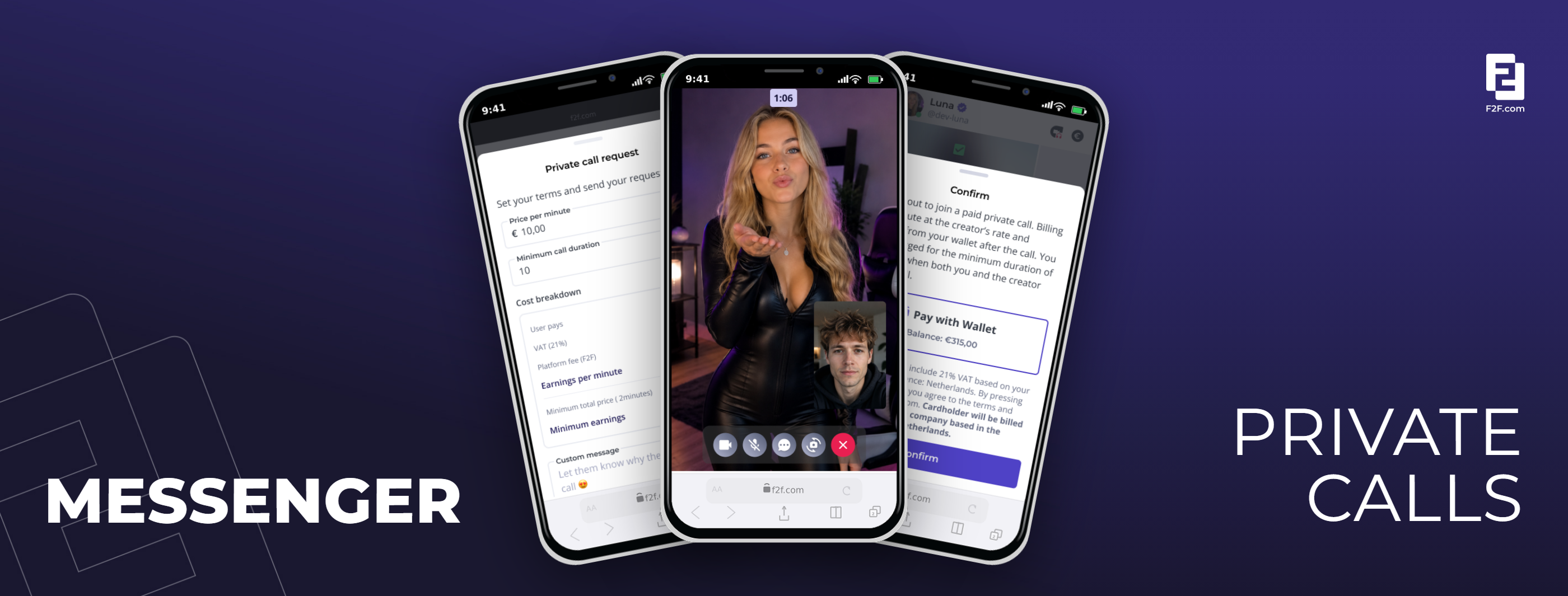
Private calls let you have a paid one-on-one video call with a user directly from your chat, with the user billed per minute from their wallet. This guide covers requesting a call, what the user sees, joining the call, and chatting during the call.
What you'll need
- An existing chat with the user
- Private Calls enabled on your account
- A price per minute and a minimum number of minutes
Request a private call with a user
Steps
- Open the chat with the user in the Messenger.
- Click the Request Call icon.
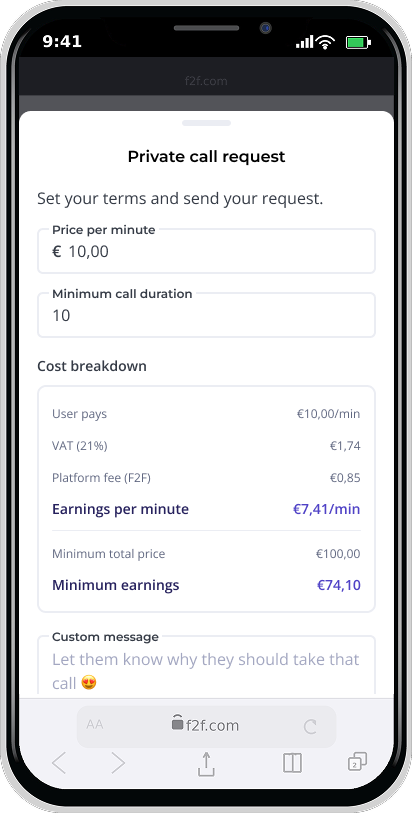
- In the overlay, check the pre-filled price per minute (based on your default or last used price) and adjust it if needed.
- Set the minimum number of minutes for the call. You can't send the request without this.
- Review the minimum total price, shown inclusive of VAT, this is the smallest amount the user will be charged.
- Check the F2F.com fee, user VAT, and your expected earnings.
- Optionally, add a personal message.
- Click Send to submit the request.
Your request appears in the chat with a Cancel option so you can withdraw it any time before the user responds.
💡 If the user is already in another private call, you'll see an availability indicator, but you can still send the request.
What happens when a user responds
The user sees your request in the chat with Accept and Decline buttons.
- If they click Decline, the request is marked declined and you're notified in the chat.
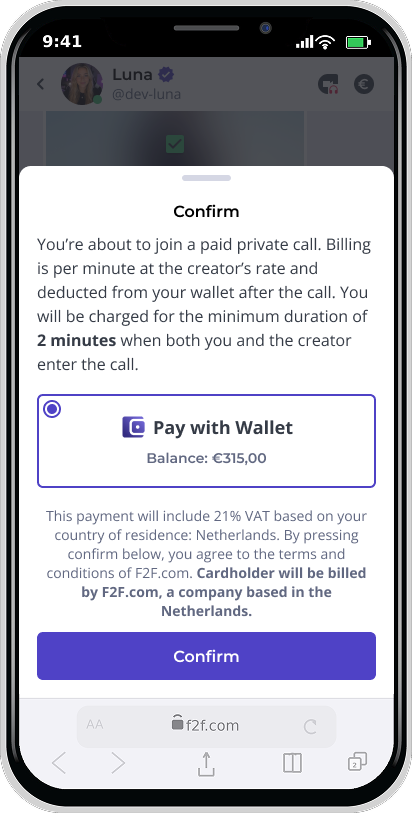
- If they click Accept, the system checks that their wallet balance covers at least the minimum total price. If their balance is too low, they're sent to top up before they can confirm.
- Once the user confirms, the request is marked Accepted, and both of you see a success message in the chat.
- If the user takes no action, the request stays open until you cancel it or it auto-expires after 10 minutes.
Join the call
Steps
- Once the user accepts, click Enter the call in the chat.
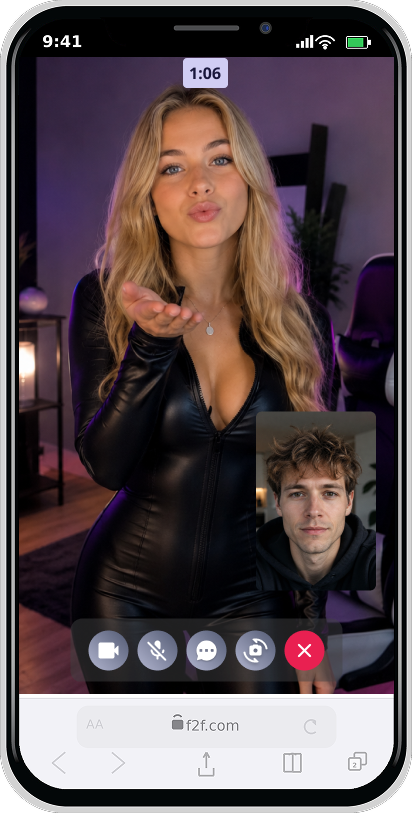
- Use the on-screen controls to toggle your camera and microphone.
- Click End call at any time to finish the session.
⚠️ Billing only starts the moment both you and the user are present in the call together. If only one of you joins, no charge happens. The system charges the minimum total price up front, then charges each following minute in advance. If the connection drops for one party, billing pauses until you're both back in the call.
You see the elapsed call time and your running earnings at the top of the screen throughout the call.
Chat during a call
Steps
- Click the Chat button inside the call UI to open the chat panel.
- Type your message and click Send.
- Messages appear instantly for both of you and are saved to your regular messenger conversation.
If the other person has the chat panel closed, a numeric badge on their Chat button shows how many messages they haven't read yet. After the call ends, all messages sent during the call stay in your regular chat history as normal text messages.